Introduction
The HDRI background environment texture is warped, not displaying correctly, or misaligned.
Blender Version
Any
Prerequisites
A Camera
An HDRI for more natural/realistic scene lighting and background
Steps
In the Shader Editor, change dropdown to World
Ensure that your HDRI is in an ENVIRONMENT texture, not an IMAGE texture.
Shift+A
- Texture -> Environment Texture
- Input -> Texture Coordinate
- Vector -> Mapping
- Shader -> Background
Texture Coordinate
- Generated output -> Mapping Vector input
Mapping
- Vector output -> Environmental Texture Vector input
- Use Rotate Z to adjust the orientation of the HDRI
Environment Texture
- Click the folder icon -> Select the HDRI from files
- Color output -> Background Color input
Background
- Background output -> World Output Surface input
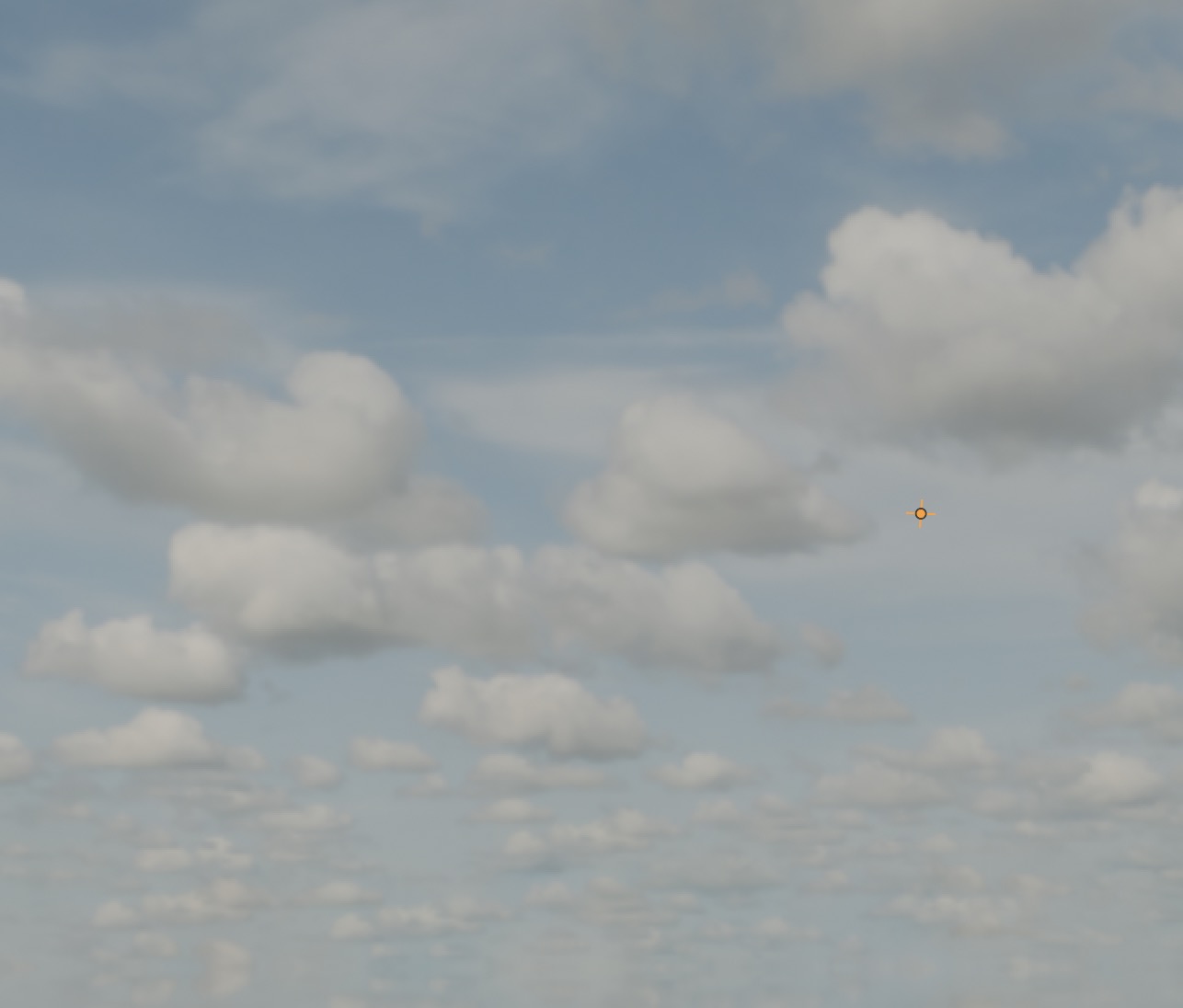
HDRI with an Environment Texture Node Displaying Correctly
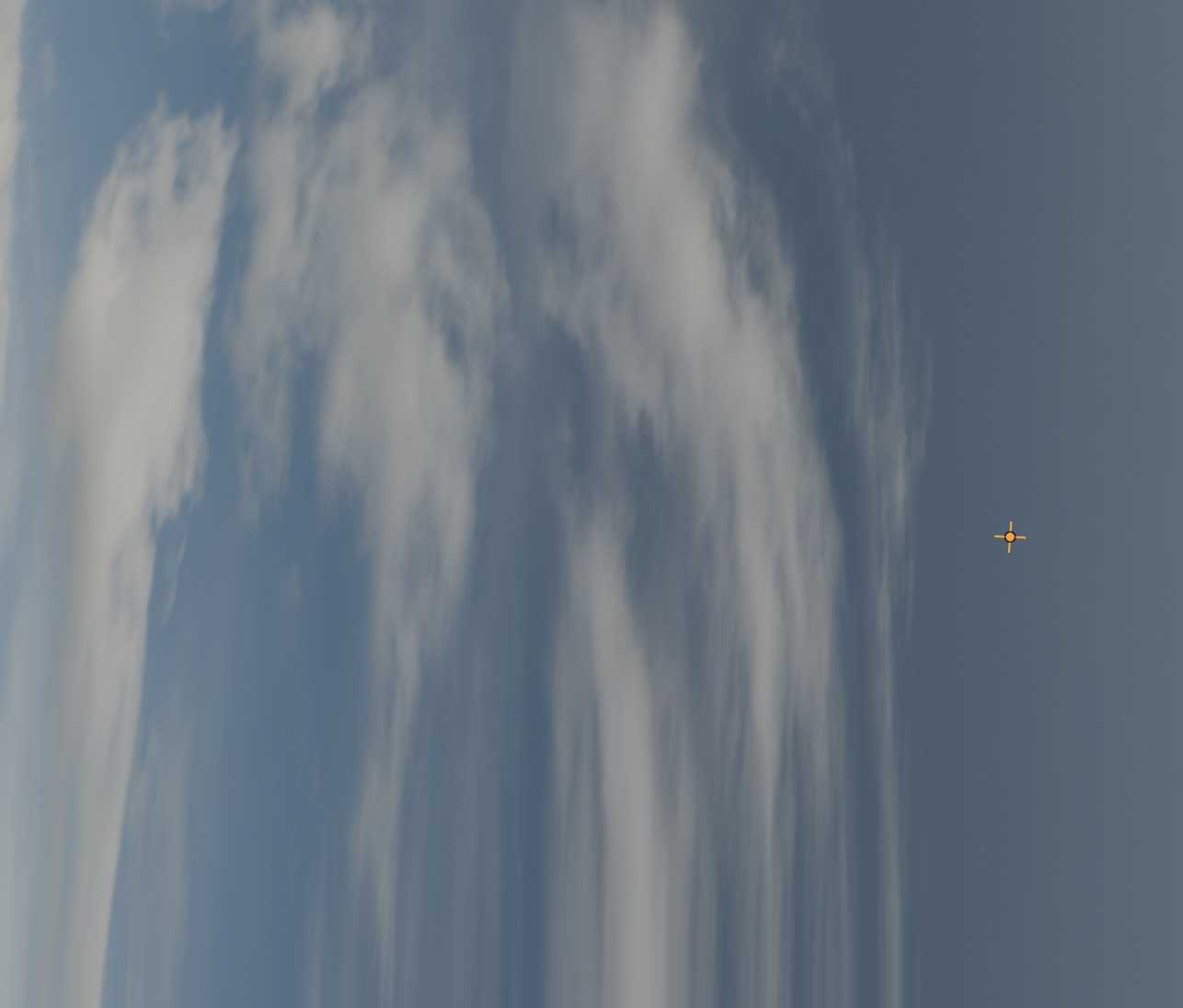
HDRI with an Image Texture Displaying Incorrectly
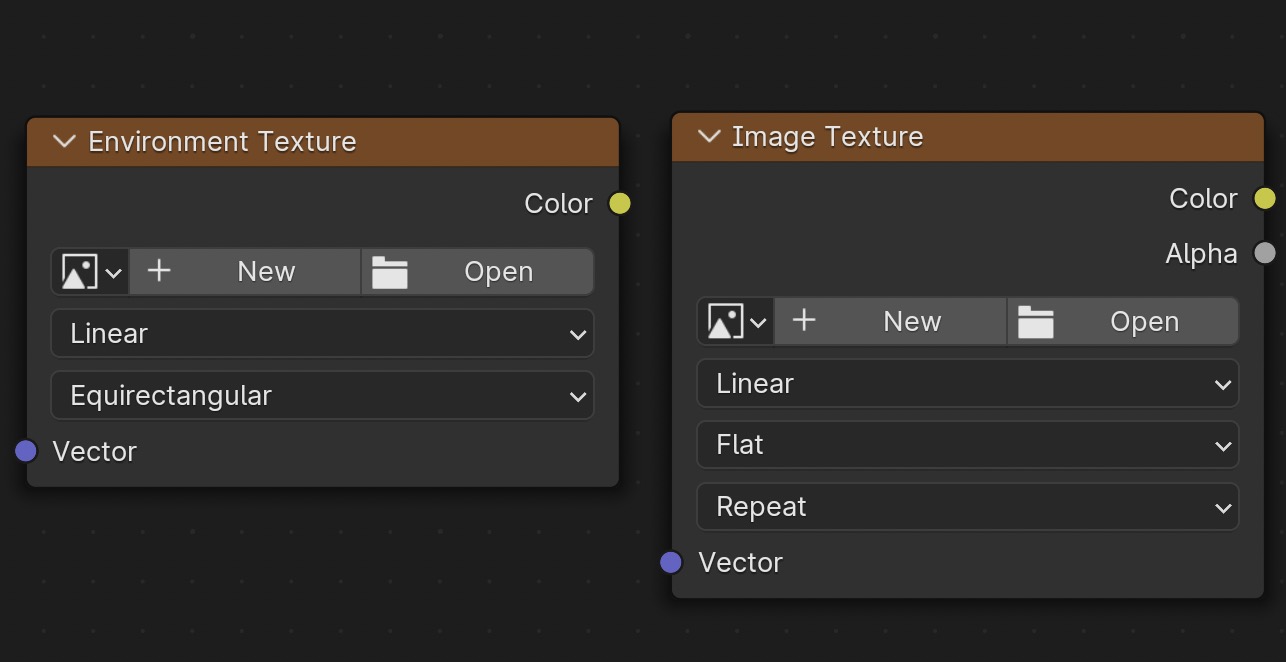
The Environment and Image Texture Nodes
previous page
|